What’s Hot

Showing posts with label networking. Show all posts


If you are well-informed about the basics of online security and anonymity, then you would be aware of the importance of IP address. If the person hunting you gets to know your IP address, it means you are done. But, Ben Caudill has made a device that will put your final IP address 2.5 miles away.
At the next month’s Def Con hacker conference on Las Vegas, security researcher Ben Caudill will reveal an extraordinary device called ProxyHam. The promises being made by the researcher would definitely delight the people looking for privacy and anonymity.


This device operates using the long-distance WiFi and 900 MHz radio connection. In the ideal conditions, ProxyHam can transmit WiFi up to a distance of 2.5 miles.

So let’s suppose you are being watched by authorities and they end up cracking your system’s IP address. Now what would they do? They would come on the scene only to find a ProxyHam device transmitting WiFi signal.

According to Caudill, technologies like Tor and its alternatives could provide anonymity but the flaws still exists i.e. a direct connection between your IP address and physical location. So, if your IP address is discovered, everything is over for you.


This is where ProxyHam comes into play. It acts a “hardware proxy” that routes local traffic through a distant WiFi network. Thus, detecting the true traffic source becomes more difficult.


At Def Con, the device will be demonstrated and the full code along with hardware specifications will be made freely available. This comprises of a WiFi enabled Raspberry Pi computer with three antennas. One is used to connect to a source WiFi network (some public WiFi) and the other two are used to transmit the signal at 900 MHz frequency. The users would have to plug a 900 MHz antenna to their computer to pick up the signal.

Caudill tells Motherboard: “We consider this the last or worst case scenario, the absolute fallback plan if everything else fails.”

We’ll write more about ProxyHam when the device will be introduced at Def Con 2015 starting from August 6.

Are you excited to know more about ProxyHam? Tell us in comments below.


Source:- fossbytes.com

Raspberry Pi Based Device Provides Anonymous WiFi, Puts You 2.5 Miles Away from Your IP Address


If you are well-informed about the basics of online security and anonymity, then you would be aware of the importance of IP address. If the person hunting you gets to know your IP address, it means you are done. But, Ben Caudill has made a device that will put your final IP address 2.5 miles away.
At the next month’s Def Con hacker conference on Las Vegas, security researcher Ben Caudill will reveal an extraordinary device called ProxyHam. The promises being made by the researcher would definitely delight the people looking for privacy and anonymity.


This device operates using the long-distance WiFi and 900 MHz radio connection. In the ideal conditions, ProxyHam can transmit WiFi up to a distance of 2.5 miles.

So let’s suppose you are being watched by authorities and they end up cracking your system’s IP address. Now what would they do? They would come on the scene only to find a ProxyHam device transmitting WiFi signal.

According to Caudill, technologies like Tor and its alternatives could provide anonymity but the flaws still exists i.e. a direct connection between your IP address and physical location. So, if your IP address is discovered, everything is over for you.


This is where ProxyHam comes into play. It acts a “hardware proxy” that routes local traffic through a distant WiFi network. Thus, detecting the true traffic source becomes more difficult.


At Def Con, the device will be demonstrated and the full code along with hardware specifications will be made freely available. This comprises of a WiFi enabled Raspberry Pi computer with three antennas. One is used to connect to a source WiFi network (some public WiFi) and the other two are used to transmit the signal at 900 MHz frequency. The users would have to plug a 900 MHz antenna to their computer to pick up the signal.

Caudill tells Motherboard: “We consider this the last or worst case scenario, the absolute fallback plan if everything else fails.”

We’ll write more about ProxyHam when the device will be introduced at Def Con 2015 starting from August 6.

Are you excited to know more about ProxyHam? Tell us in comments below.

Source:- fossbytes.com


Latest Airtel free 3g internet proxy trick June 2015 (updated)
Hai techintor fans, today I got new proxy free internet trick for airtel. I knew that many airtel users are searching for - 2015 June 2015 airtel free 3g proxy trick. Yes this is the correct place. Here I am posting 100% working airtel free 3g internet proxy trick. This proxies are 100 percentage working in all over India. And I am personally checked in Kerala.
This latest airtel proxy and home pages are generated by the hard work of a big team. So don't copy paste our posts. It is against DMCA and our privacy.


Read latest airtel free 3g internet data proxy trick - JUNE, JULY 2015
Proxy list - 
- 115.231.97.251 [ first try this]
- http://199.167.132.128/ [high spped]

- www.air-proxy.com
- zacebook.com
 - 0000a-fast-Proxy.de
 - 176.126.237.198
 - 85.31.188.132
 - 162.213.39.110 (resume supported)
 - iphider.org or 192.99.36.43 (High Speed)
 - prx.im or 176.126.237.199
 - 216.155.153.105 - 
185.12.6.15 (resume supported)
 - 198.204.237.10
 - proxies.us OR 23.105.134.34
 - bbproxy.pw OR 198.204.237.11
 - 93.115.85.195
 - 4everproxy.com OR 192.30.136.222
 - hideip.co OR 199.167.133.154
 - hiload.org OR 37.48.85.195
 - clickbypass.info OR 198.50.152.63
 - www.zfreez.com OR www.efreetimes.com OR www.vigoob.com OR       46.105.18.32
 - 5.10.71.134 OR Jetproxy.com
 - 5.199.140.148 OR proxy.hmastuff.com
 - 63.25.153.7
 - 5.231.56.12 
Port - 80 or 443

Home pages - 

d26le6habm8lnc.cloudfront.net [ try this first]
 airtelgurus.com [ try this too]
 twangmusic.in
 one.airtel.in
 m.airtellive.com
 buddies.airtelmoney.in
 ic.bsbportal.com or video.bsbportal.com or Prod.bsbportal.com
airtelgurus.com or video.airtelgurus.com
get.hike.in
 get.wynk.in/56789.airtel.in
live.airtelworld.com or d.airtelworld.coM

Follow the below steps to use free 2g or 3g internet Using PROXY trick

For Mobile users
1.Go to settings in mobile phone
2.Then open Network Connection Setting.
3.Now in the option, click on create new setting/ connection.
4.There you'll get many input options just do as stated below-
5.Account Name – Airtel free 3g internet trick by techiNtor
6.APN – airtelgprs.com
7.Proxy address – Type any of the proxy address given above.8. Port – 80
9.Now leave all the other fields blank
10.Save settings and Make it default
11.Now open your internet browser ( open any browser )
12.Now open any homepage given above
13. Now enjoy free 3g high speed internet on your airtel.

For PC (computer) Users

I will recommend you to use Mozilla Firefox for setting up proxy trick.
1. Open Options.
2. Click on the advance tab and then network tab.
3. Click on Manual Connection setting and add the above-given proxy and port.
3. Save the setting.

4.Now open home page given above

5.Enjoy free high-speed 3g internet on your PC with your airtel sim


If you get low internet speed then disable javascript and enjoy high speed
 ALSO READ - AIRTEL FREE 3G INTERNET TRICK JUNE 2015 , USING VPN TRICK

Is this post helped you? Then please share it. Share our posts and support us. Keep visiting techintor.com and grab more tricks and tips.
Incoming search terms - latest airtel free 3g internet proxy trick JUNE 2015 , airtel free 3g proxy JUNE 2015, airtel free 3g internet trick JUNE 2015


Trick No. 2: Airtel high-speed Proxy with front query trick JUNE 2015
open opera Mini handler or Uc browser and set the following details-
Proxy:  208.116.58.26
Port: 80
Apn: airtelgprs.com
Front-Query: wynk.in/~dedi/index.pl/en/00/http/
OR
Proxy:- 192.185.24.25
Port:-80
Apn:- airtelgprs.com
Front-Query: buddies.airtelmoney.in/~kollev/index.pl/en/00/http/
OR
Proxy:- 119.81.182.246
Port:-80
Apn:- airtelgprs.com
Home page:- airtellive.com
Front-Query - airtellive.com/cgi-bin/nph-naninaveen.pl/en/20/http/
This airtel proxy with front query trick is working in JUNE 2015. Working with high speed and confirmed in many states.

Source:-techintor.com

Airtel free 3g internet

Latest Airtel free 3g internet proxy trick June 2015 (updated)
Hai techintor fans, today I got new proxy free internet trick for airtel. I knew that many airtel users are searching for - 2015 June 2015 airtel free 3g proxy trick. Yes this is the correct place. Here I am posting 100% working airtel free 3g internet proxy trick. This proxies are 100 percentage working in all over India. And I am personally checked in Kerala.
This latest airtel proxy and home pages are generated by the hard work of a big team. So don't copy paste our posts. It is against DMCA and our privacy.


Read latest airtel free 3g internet data proxy trick - JUNE, JULY 2015
Proxy list - 
- 115.231.97.251 [ first try this]
- http://199.167.132.128/ [high spped]

- www.air-proxy.com
- zacebook.com
 - 0000a-fast-Proxy.de
 - 176.126.237.198
 - 85.31.188.132
 - 162.213.39.110 (resume supported)
 - iphider.org or 192.99.36.43 (High Speed)
 - prx.im or 176.126.237.199
 - 216.155.153.105 - 
185.12.6.15 (resume supported)
 - 198.204.237.10
 - proxies.us OR 23.105.134.34
 - bbproxy.pw OR 198.204.237.11
 - 93.115.85.195
 - 4everproxy.com OR 192.30.136.222
 - hideip.co OR 199.167.133.154
 - hiload.org OR 37.48.85.195
 - clickbypass.info OR 198.50.152.63
 - www.zfreez.com OR www.efreetimes.com OR www.vigoob.com OR       46.105.18.32
 - 5.10.71.134 OR Jetproxy.com
 - 5.199.140.148 OR proxy.hmastuff.com
 - 63.25.153.7
 - 5.231.56.12 
Port - 80 or 443

Home pages - 

d26le6habm8lnc.cloudfront.net [ try this first]
 airtelgurus.com [ try this too]
 twangmusic.in
 one.airtel.in
 m.airtellive.com
 buddies.airtelmoney.in
 ic.bsbportal.com or video.bsbportal.com or Prod.bsbportal.com
airtelgurus.com or video.airtelgurus.com
get.hike.in
 get.wynk.in/56789.airtel.in
live.airtelworld.com or d.airtelworld.coM

Follow the below steps to use free 2g or 3g internet Using PROXY trick

For Mobile users
1.Go to settings in mobile phone
2.Then open Network Connection Setting.
3.Now in the option, click on create new setting/ connection.
4.There you'll get many input options just do as stated below-
5.Account Name – Airtel free 3g internet trick by techiNtor
6.APN – airtelgprs.com
7.Proxy address – Type any of the proxy address given above.8. Port – 80
9.Now leave all the other fields blank
10.Save settings and Make it default
11.Now open your internet browser ( open any browser )
12.Now open any homepage given above
13. Now enjoy free 3g high speed internet on your airtel.

For PC (computer) Users

I will recommend you to use Mozilla Firefox for setting up proxy trick.
1. Open Options.
2. Click on the advance tab and then network tab.
3. Click on Manual Connection setting and add the above-given proxy and port.
3. Save the setting.

4.Now open home page given above

5.Enjoy free high-speed 3g internet on your PC with your airtel sim


If you get low internet speed then disable javascript and enjoy high speed
 ALSO READ - AIRTEL FREE 3G INTERNET TRICK JUNE 2015 , USING VPN TRICK

Is this post helped you? Then please share it. Share our posts and support us. Keep visiting techintor.com and grab more tricks and tips.
Incoming search terms - latest airtel free 3g internet proxy trick JUNE 2015 , airtel free 3g proxy JUNE 2015, airtel free 3g internet trick JUNE 2015


Trick No. 2: Airtel high-speed Proxy with front query trick JUNE 2015
open opera Mini handler or Uc browser and set the following details-
Proxy:  208.116.58.26
Port: 80
Apn: airtelgprs.com
Front-Query: wynk.in/~dedi/index.pl/en/00/http/
OR
Proxy:- 192.185.24.25
Port:-80
Apn:- airtelgprs.com
Front-Query: buddies.airtelmoney.in/~kollev/index.pl/en/00/http/
OR
Proxy:- 119.81.182.246
Port:-80
Apn:- airtelgprs.com
Home page:- airtellive.com
Front-Query - airtellive.com/cgi-bin/nph-naninaveen.pl/en/20/http/
This airtel proxy with front query trick is working in JUNE 2015. Working with high speed and confirmed in many states.

Source:-techintor.com


Did you buy or hire a new broadband service and you want to configure your modem without paying any massive installation fees? Or you going to buy a new ADLS + Router Modem for your connecting and you wanna to save your money wasting on re-installation fee? Don’t worry about it In this tutorial I’m gonna to show you how you can easily setup your modem connection and configure it to continues use of your service by saving money and time .

So lets see

Here’s I give you an image below to understand how the thing gonna workout.
123
So, the first thing is to do is collecting materials in order to setup your modem connection. Here’s a list below what you’ve needed-
  1. Phone Line Splitter
  2. Phone Line Filter (Optional)
  3. Two RJ-45 Cable
  4. One RJ 45 Cable
  5. Modem (ADSL or ADSL+ Router, Whatever you want you use)
After collecting all these material, let’s move on to the setup process.

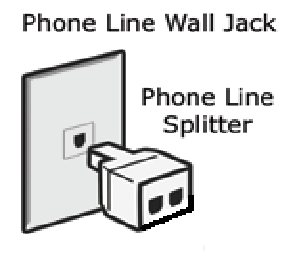
Step 1 – Joint a phone line splitter to your internet service provider main line to split or divide the main line into two. We do this because we are going to use internet and phone at the same time if you don’t wanna to use a telephone then you can skip this step and move on to next.
phone line splitter
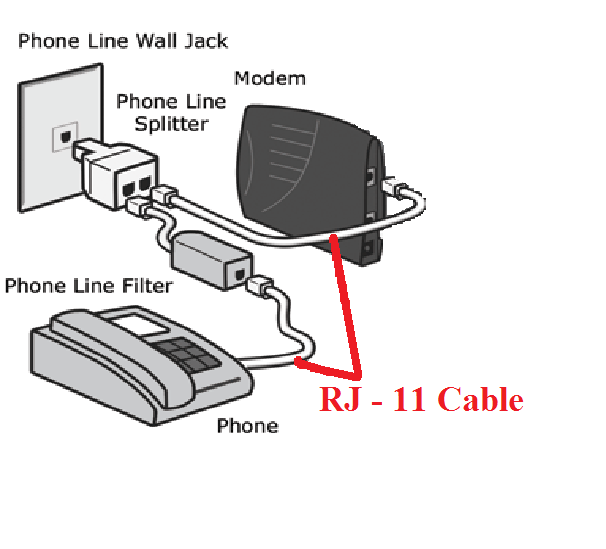
Step 2 – Joint the one end of Rj-11 cable to the splitter/main line and the other to the modem. After that joint the one end of second Rj-11 cable to the splitter or main line and the other to your telephone.
modem connection
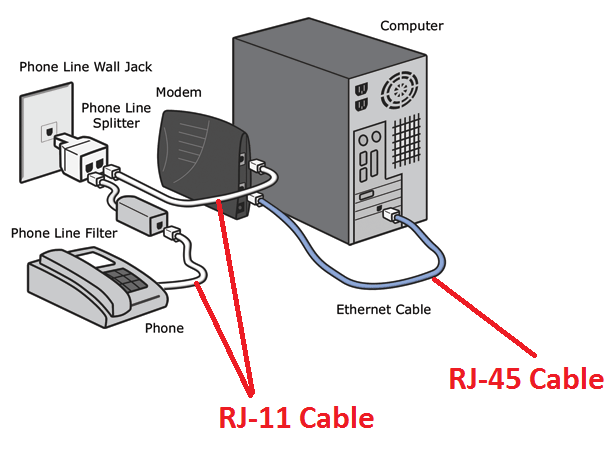
Step 3 – Connect a one end of RJ-45 cable to the modem and the other into your computer. This will allow your computer to make a data transfer to your ISP and access you internet connection.
123
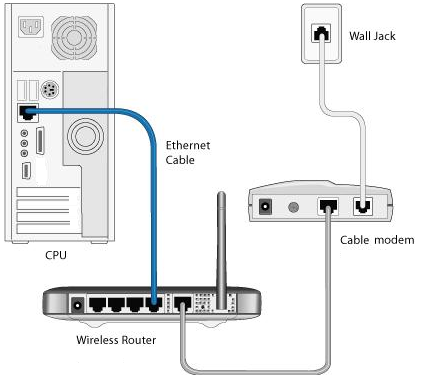
If you have a Wi-Fi router then you’ll have to connect the router to the modem and computer to the router by the use of RJ-45 Cable shown as below.
Wireless Router setup to modem
Step 4 – Modem Configuration
Now the modem connection setup is done but you aren’t able to access the internet until you’ve configure your modern. In order to configure your modem you’ll need to find the gateway ip of your modem to open configuration page.
It’s hard to define how to configure a modem in a one tutorial because the configuration is different in all network connections. So, asks your ISP, what type of network do they provide you its PPPoE or Static IP. If its PPPoE then ask for your connection “Username and Password” or your connection is Static IP address, in order to configure your modem.
Here’s a link to show you how to configure your modem.
Mode: PPPoE 
http://corpocrat.com/2011/04/01/how-to-configure-modemrouter-for-airtel-broadband/
http://letmesearch.in/bsnl-modem-configuration-wifi/57
Mode: Static IP
http://www.tp-link.com/en/article/?faqid=85

I know may be this link won’t help you but it’s give you an idea to know how to do this, i suggest you to search on Google to find the configuration setting of your network like how to configure airtel broadband modem or how to configure bsnl modem etc. Whatever your service provider names is. You can call to your ISP to provide you a help to configure your modem.
When you’ve done with the ADSL DNS Setting then you’ll move on to wireless WiFi setting to add a password to your wifi internet.
  1. Adsl+ Router (Modem and Wireless Router In Once)
  2. Router (Only Wi-Fi Router)
If you having an ADSL+ Router then configure your Wi-Fi setting in the wireless tab of your routers configuration page or if you having a simple Wi-Fi router then you’ll need to connect it to the modem first and then configure it manually.
Here’s a link to show you how to configure a Wi-Fi router>>> http://www.deskdecode.com/change-wireless-wifi-router-password/

Source:-deskdecode

How To Setup A Modem To Computer From A Telephone/ISP Line (Modem Configuration)?

Did you buy or hire a new broadband service and you want to configure your modem without paying any massive installation fees? Or you going to buy a new ADLS + Router Modem for your connecting and you wanna to save your money wasting on re-installation fee? Don’t worry about it In this tutorial I’m gonna to show you how you can easily setup your modem connection and configure it to continues use of your service by saving money and time .

So lets see

Here’s I give you an image below to understand how the thing gonna workout.
123
So, the first thing is to do is collecting materials in order to setup your modem connection. Here’s a list below what you’ve needed-
  1. Phone Line Splitter
  2. Phone Line Filter (Optional)
  3. Two RJ-45 Cable
  4. One RJ 45 Cable
  5. Modem (ADSL or ADSL+ Router, Whatever you want you use)
After collecting all these material, let’s move on to the setup process.

Step 1 – Joint a phone line splitter to your internet service provider main line to split or divide the main line into two. We do this because we are going to use internet and phone at the same time if you don’t wanna to use a telephone then you can skip this step and move on to next.
phone line splitter
Step 2 – Joint the one end of Rj-11 cable to the splitter/main line and the other to the modem. After that joint the one end of second Rj-11 cable to the splitter or main line and the other to your telephone.
modem connection
Step 3 – Connect a one end of RJ-45 cable to the modem and the other into your computer. This will allow your computer to make a data transfer to your ISP and access you internet connection.
123
If you have a Wi-Fi router then you’ll have to connect the router to the modem and computer to the router by the use of RJ-45 Cable shown as below.
Wireless Router setup to modem
Step 4 – Modem Configuration
Now the modem connection setup is done but you aren’t able to access the internet until you’ve configure your modern. In order to configure your modem you’ll need to find the gateway ip of your modem to open configuration page.
It’s hard to define how to configure a modem in a one tutorial because the configuration is different in all network connections. So, asks your ISP, what type of network do they provide you its PPPoE or Static IP. If its PPPoE then ask for your connection “Username and Password” or your connection is Static IP address, in order to configure your modem.
Here’s a link to show you how to configure your modem.
Mode: PPPoE 
http://corpocrat.com/2011/04/01/how-to-configure-modemrouter-for-airtel-broadband/
http://letmesearch.in/bsnl-modem-configuration-wifi/57
Mode: Static IP
http://www.tp-link.com/en/article/?faqid=85

I know may be this link won’t help you but it’s give you an idea to know how to do this, i suggest you to search on Google to find the configuration setting of your network like how to configure airtel broadband modem or how to configure bsnl modem etc. Whatever your service provider names is. You can call to your ISP to provide you a help to configure your modem.
When you’ve done with the ADSL DNS Setting then you’ll move on to wireless WiFi setting to add a password to your wifi internet.
  1. Adsl+ Router (Modem and Wireless Router In Once)
  2. Router (Only Wi-Fi Router)
If you having an ADSL+ Router then configure your Wi-Fi setting in the wireless tab of your routers configuration page or if you having a simple Wi-Fi router then you’ll need to connect it to the modem first and then configure it manually.
Here’s a link to show you how to configure a Wi-Fi router>>> http://www.deskdecode.com/change-wireless-wifi-router-password/

Source:-deskdecode