What’s Hot

Showing posts with label Hardware. Show all posts

The security expert Dark Purple detailed its experiment for building a weaponized Killer USB device that could be used to burn a machine.

Is it possible to use an apparently USB drive to kill an individual? It seems the scene of a Sci-Fi movie, anyway it is an interesting topic to explore.
Let’s read together the story about Killer USB drive:
A man walking in the subway stole a USB flash drive from the outer pocket of someone else’s bag. The pendrive had “128” written on it. After coming home, he inserted the pendrive into his laptop and instead discovering any useful data, he burnt half of his laptop down. The man then took out the USB pendrive, replaced the text “128” with “129” and put it in the outer pocket of his bag… Amen!
Starting from the story a Russian researcher, nicknamed Dark Purple, developed a proof-of-concept  computer-frying Killer USB pendrive.
Dark Purple works for a company that develops and manufactures electronic components, the researchers together with his colleagues decided to create a USB flash drive which a specific purpose, it “would burn half a laptop down.”
Cool!
The researcher decided to design the Killer USB, a USB flash drive that could be exploited to burn a PC or at least kill its USB port, then, he ordered some circuit boards from China
“I was not going to order the production of printed circuit boards for other projects.”
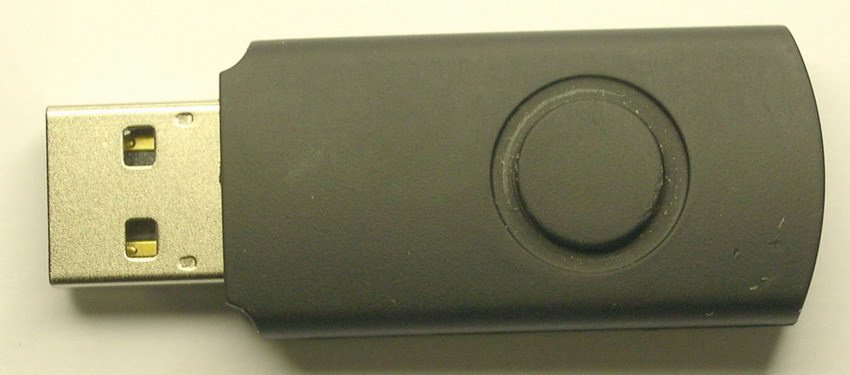
USB Killer
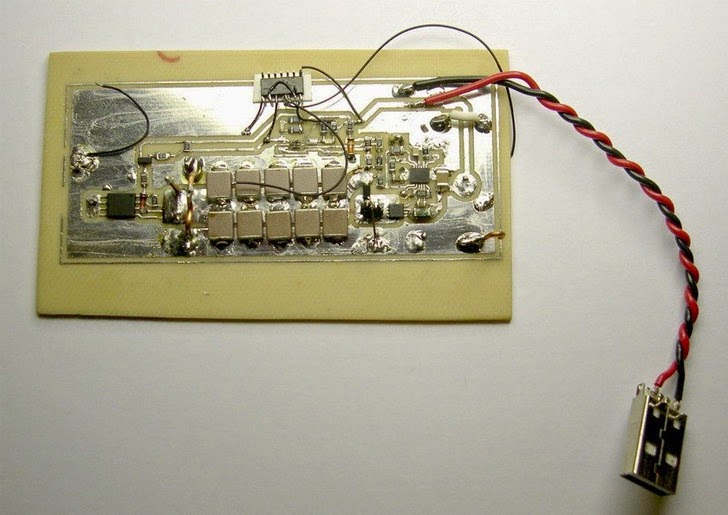
Basically the researcher wants to charge capacitors to -110V and discharge them. The -110V voltage is applied to the USB interface. The operations go in a loop till everything possible is broken down.
“The basic idea of the USB drive is quite simple. When we connect it up to the USB port, an inverting DC/DC converter runs and charges capacitors to -110V. When the voltage is reached, the DC/DC is switched off. At the same time, the filed transistor opens. It is used to apply the -110V to signal lines of the USB interface. When the voltage on capacitors increases to -7V, the transistor closes and the DC/DC starts. The loop runs till everything possible is broken down. ” said the expert.
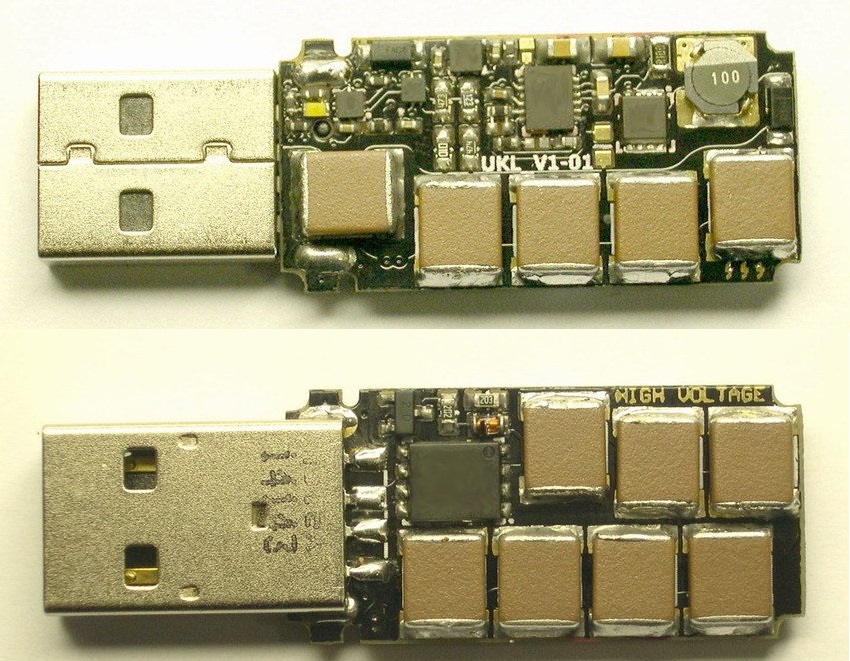
The researcher has built a first time killer USB prototype that is able to effectively destroy sensitive components of a computer when plugged-in.
USB Killer 2
Killer USB is not a new concept, weaponized devices could be used to cause malfunction in target systems or to disable defensive systems. USB represents a valid weapon to compromise the system in air-gapped networks.
Let’s think to the Stuxnet case, or the Fanny implant  belonging to the arsenal of the Equation Group APT.
The Fanny worm was considered one of the more interesting weapons in the hacking arsenal of the team, the malware was used by the hackers to map air-gapped networks. The worm was designed to map the topology of a targeted network and to execute commands to these isolated systems by exploiting compromised USB devices.
” For this, it used a unique USB-based command and control mechanism. When a USB stick is infected, Fanny creates a hidden storage area on the stick. If it infects a computer without an internet connection, it will collect basic system information and save it onto the hidden area of the stick. Later, when a stick containing hidden information is plugged into an internet-connected computer infected by Fanny, the data will be scooped up from the hidden area and sent to the C&C. If the attackers want to run commands on the air-gapped networks, they can save these commands in the hidden area of the USB stick. When the stick is plugged into the air-gapped computer, Fanny will recognize the commands and execute them”
“Also in 2014, a security firm demonstrated an attack on Apple’s Mac computer by overriding temperature controls, which can actually set the machine on fire.” reports the colleagues at THEHACKERNEWS that I thanks for publishing the news of the Killer USB.
Lesson learned … before inserting an USB device into your PC, be sure about its origin.


Source:-securityaffairs.co

Killer USB | how to burn a PC with a USB device

The security expert Dark Purple detailed its experiment for building a weaponized Killer USB device that could be used to burn a machine.

Is it possible to use an apparently USB drive to kill an individual? It seems the scene of a Sci-Fi movie, anyway it is an interesting topic to explore.
Let’s read together the story about Killer USB drive:
A man walking in the subway stole a USB flash drive from the outer pocket of someone else’s bag. The pendrive had “128” written on it. After coming home, he inserted the pendrive into his laptop and instead discovering any useful data, he burnt half of his laptop down. The man then took out the USB pendrive, replaced the text “128” with “129” and put it in the outer pocket of his bag… Amen!
Starting from the story a Russian researcher, nicknamed Dark Purple, developed a proof-of-concept  computer-frying Killer USB pendrive.
Dark Purple works for a company that develops and manufactures electronic components, the researchers together with his colleagues decided to create a USB flash drive which a specific purpose, it “would burn half a laptop down.”
Cool!
The researcher decided to design the Killer USB, a USB flash drive that could be exploited to burn a PC or at least kill its USB port, then, he ordered some circuit boards from China
“I was not going to order the production of printed circuit boards for other projects.”
USB Killer
Basically the researcher wants to charge capacitors to -110V and discharge them. The -110V voltage is applied to the USB interface. The operations go in a loop till everything possible is broken down.
“The basic idea of the USB drive is quite simple. When we connect it up to the USB port, an inverting DC/DC converter runs and charges capacitors to -110V. When the voltage is reached, the DC/DC is switched off. At the same time, the filed transistor opens. It is used to apply the -110V to signal lines of the USB interface. When the voltage on capacitors increases to -7V, the transistor closes and the DC/DC starts. The loop runs till everything possible is broken down. ” said the expert.
The researcher has built a first time killer USB prototype that is able to effectively destroy sensitive components of a computer when plugged-in.
USB Killer 2
Killer USB is not a new concept, weaponized devices could be used to cause malfunction in target systems or to disable defensive systems. USB represents a valid weapon to compromise the system in air-gapped networks.
Let’s think to the Stuxnet case, or the Fanny implant  belonging to the arsenal of the Equation Group APT.
The Fanny worm was considered one of the more interesting weapons in the hacking arsenal of the team, the malware was used by the hackers to map air-gapped networks. The worm was designed to map the topology of a targeted network and to execute commands to these isolated systems by exploiting compromised USB devices.
” For this, it used a unique USB-based command and control mechanism. When a USB stick is infected, Fanny creates a hidden storage area on the stick. If it infects a computer without an internet connection, it will collect basic system information and save it onto the hidden area of the stick. Later, when a stick containing hidden information is plugged into an internet-connected computer infected by Fanny, the data will be scooped up from the hidden area and sent to the C&C. If the attackers want to run commands on the air-gapped networks, they can save these commands in the hidden area of the USB stick. When the stick is plugged into the air-gapped computer, Fanny will recognize the commands and execute them”
“Also in 2014, a security firm demonstrated an attack on Apple’s Mac computer by overriding temperature controls, which can actually set the machine on fire.” reports the colleagues at THEHACKERNEWS that I thanks for publishing the news of the Killer USB.
Lesson learned … before inserting an USB device into your PC, be sure about its origin.


Source:-securityaffairs.co


If you are well-informed about the basics of online security and anonymity, then you would be aware of the importance of IP address. If the person hunting you gets to know your IP address, it means you are done. But, Ben Caudill has made a device that will put your final IP address 2.5 miles away.
At the next month’s Def Con hacker conference on Las Vegas, security researcher Ben Caudill will reveal an extraordinary device called ProxyHam. The promises being made by the researcher would definitely delight the people looking for privacy and anonymity.


This device operates using the long-distance WiFi and 900 MHz radio connection. In the ideal conditions, ProxyHam can transmit WiFi up to a distance of 2.5 miles.

So let’s suppose you are being watched by authorities and they end up cracking your system’s IP address. Now what would they do? They would come on the scene only to find a ProxyHam device transmitting WiFi signal.

According to Caudill, technologies like Tor and its alternatives could provide anonymity but the flaws still exists i.e. a direct connection between your IP address and physical location. So, if your IP address is discovered, everything is over for you.


This is where ProxyHam comes into play. It acts a “hardware proxy” that routes local traffic through a distant WiFi network. Thus, detecting the true traffic source becomes more difficult.


At Def Con, the device will be demonstrated and the full code along with hardware specifications will be made freely available. This comprises of a WiFi enabled Raspberry Pi computer with three antennas. One is used to connect to a source WiFi network (some public WiFi) and the other two are used to transmit the signal at 900 MHz frequency. The users would have to plug a 900 MHz antenna to their computer to pick up the signal.

Caudill tells Motherboard: “We consider this the last or worst case scenario, the absolute fallback plan if everything else fails.”

We’ll write more about ProxyHam when the device will be introduced at Def Con 2015 starting from August 6.

Are you excited to know more about ProxyHam? Tell us in comments below.


Source:- fossbytes.com

Raspberry Pi Based Device Provides Anonymous WiFi, Puts You 2.5 Miles Away from Your IP Address


If you are well-informed about the basics of online security and anonymity, then you would be aware of the importance of IP address. If the person hunting you gets to know your IP address, it means you are done. But, Ben Caudill has made a device that will put your final IP address 2.5 miles away.
At the next month’s Def Con hacker conference on Las Vegas, security researcher Ben Caudill will reveal an extraordinary device called ProxyHam. The promises being made by the researcher would definitely delight the people looking for privacy and anonymity.


This device operates using the long-distance WiFi and 900 MHz radio connection. In the ideal conditions, ProxyHam can transmit WiFi up to a distance of 2.5 miles.

So let’s suppose you are being watched by authorities and they end up cracking your system’s IP address. Now what would they do? They would come on the scene only to find a ProxyHam device transmitting WiFi signal.

According to Caudill, technologies like Tor and its alternatives could provide anonymity but the flaws still exists i.e. a direct connection between your IP address and physical location. So, if your IP address is discovered, everything is over for you.


This is where ProxyHam comes into play. It acts a “hardware proxy” that routes local traffic through a distant WiFi network. Thus, detecting the true traffic source becomes more difficult.


At Def Con, the device will be demonstrated and the full code along with hardware specifications will be made freely available. This comprises of a WiFi enabled Raspberry Pi computer with three antennas. One is used to connect to a source WiFi network (some public WiFi) and the other two are used to transmit the signal at 900 MHz frequency. The users would have to plug a 900 MHz antenna to their computer to pick up the signal.

Caudill tells Motherboard: “We consider this the last or worst case scenario, the absolute fallback plan if everything else fails.”

We’ll write more about ProxyHam when the device will be introduced at Def Con 2015 starting from August 6.

Are you excited to know more about ProxyHam? Tell us in comments below.


Source:- fossbytes.com


Two years ago when I bought my current PC, I thought 8GB RAM was enough and today 8GB or 16GB RAMs in PCs are a common sight. But what about whooping 128GB RAM – Sounds insane? Now companies like Kingston and Corsair have made the 128GB RAMs a reality.

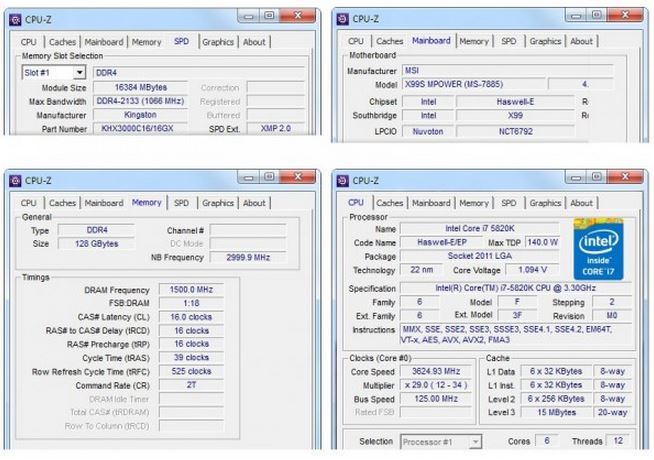
Earlier this week, Kingston claimed that it is set to roll out the highest performing memory kit for computers. This is a part of Kingston’s HyperX lineup and is DDR4 type. Kingston called it world’s fastest DDR4 126GB RAM kit and it runs at 3000MHz. This includes eight modules of 16GB modules and the timings on them are 16-16-16-36.

HyperX, a division of Kingston Inc., is a leader in memory products, will be releasing a high-end system featuring these modules during the Computex Taipei.

The processor used in the test system was an Intel Core i7 5820K. Right now, Kingston hasn’t told much about the availability and pricing of these 128GB RAM kits. Take a look at the screenshots of the system performance below:


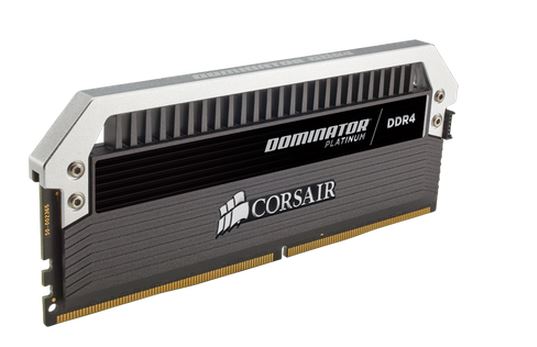
In another similar news, Corsair released 128GB DDR4 memory kits a couple of days before. The technology company has three 128GB kits – one in the Vengeance LPX and two Dominator Platinum sets. These are now available for purchase and designed for Intel X99 series motherboards.


These first available kits run at 2400Mz and the kits with more speed will be coming soon. These memory kits come with lifetime warranty.

Take a look at the specifications and price below:


Vengeance LPX 128 GB8 x 16 GB modules2400 MHz14-16-16-31, 1.2 V$1754.99
Dominator Platinum 128 GB8 x 16 GB modules2400 MHz14-16-16-31, 1.2 V$1979.99
Dominator Platinum 128 GB8 x 16 GB modules2666 MHz15-17-17-35, 1.2 V$2119.99
Are you planning to buy these super fast and super costly RAM kits? Tell us in comments below!

Source:-fossbytes.com

BAP of All RAMs: World’s Fastest 128GB DDR4 RAM Kits Are Here


Two years ago when I bought my current PC, I thought 8GB RAM was enough and today 8GB or 16GB RAMs in PCs are a common sight. But what about whooping 128GB RAM – Sounds insane? Now companies like Kingston and Corsair have made the 128GB RAMs a reality.

Earlier this week, Kingston claimed that it is set to roll out the highest performing memory kit for computers. This is a part of Kingston’s HyperX lineup and is DDR4 type. Kingston called it world’s fastest DDR4 126GB RAM kit and it runs at 3000MHz. This includes eight modules of 16GB modules and the timings on them are 16-16-16-36.

HyperX, a division of Kingston Inc., is a leader in memory products, will be releasing a high-end system featuring these modules during the Computex Taipei.

The processor used in the test system was an Intel Core i7 5820K. Right now, Kingston hasn’t told much about the availability and pricing of these 128GB RAM kits. Take a look at the screenshots of the system performance below:


In another similar news, Corsair released 128GB DDR4 memory kits a couple of days before. The technology company has three 128GB kits – one in the Vengeance LPX and two Dominator Platinum sets. These are now available for purchase and designed for Intel X99 series motherboards.


These first available kits run at 2400Mz and the kits with more speed will be coming soon. These memory kits come with lifetime warranty.

Take a look at the specifications and price below:


Vengeance LPX 128 GB8 x 16 GB modules2400 MHz14-16-16-31, 1.2 V$1754.99
Dominator Platinum 128 GB8 x 16 GB modules2400 MHz14-16-16-31, 1.2 V$1979.99
Dominator Platinum 128 GB8 x 16 GB modules2666 MHz15-17-17-35, 1.2 V$2119.99
Are you planning to buy these super fast and super costly RAM kits? Tell us in comments below!

Source:-fossbytes.com


Source: eeecommunity

Today we are here with a cool trick, How To Remove Computer Viruses Using CMD (Command Prompt) – Today Virus can enter in our computer through many ways like through Internet Browsing, From USB devices and also by installing some infected software. These viruses makes our computer run slow and also some of the dangerous viruses can steal our data. These viruses can also corrupts our operating system too. So better choice is to remove these viruses as soon as possible. There are different method to remove virus from a computer system which include antivirus programs and firewalls etc. But today we are discussing here a method by which you can easily Remove Computer Viruses Using Cmd. The method is simple and straight. Just read out the below post to proceed.
Remove Computer Viruses Using CMD (Command Prompt)


Actually command prompt is a utility program that have a access to alter all the system files, and in this method we will be using the same access of cmd. This method works on attributes removing which can be one reason of virus. As the most probable reason for virus to come into your computer is through USB device. So this method worls perfectly on usb to remove its viruses and secure your computer.

Steps To Remove Computer Viruses Using Command Prompt

  1. Firs of all click on Start and type cmd.
  2. Now right click on cmd icon and select run as administrator.
  3. Now command prompt window will open, now select your drive which you want to remove virus.
  4. Let the drive be D.
  5. Now in cmd window type attrib -s -h *.* /s /d then press enter.
  6. Now type dir by this all your content will get displayed.
  7. Now if you notice and unusual file.exe and any of autorun.inf then rename it with the command(rename filename.extension newfilename)
  8. Thats it now you can access your drives without affecting from viruses.
So above is method for How To Remove Computer Viruses Using CMD Command Prompt. By this method you can easily remove even harmful viruses that can corrupts your operating system too. This method is very cool and efficient and doesn’t require any software just only a simple utility program of your system and simple cmd tricks 2015. Hope you like the post. Don’t forget to share it with your friends.

Source:- techhacks.org

How To Remove Computer Viruses Using CMD – CMD Tricks 2015

Today we are here with a cool trick, How To Remove Computer Viruses Using CMD (Command Prompt) – Today Virus can enter in our computer through many ways like through Internet Browsing, From USB devices and also by installing some infected software. These viruses makes our computer run slow and also some of the dangerous viruses can steal our data. These viruses can also corrupts our operating system too. So better choice is to remove these viruses as soon as possible. There are different method to remove virus from a computer system which include antivirus programs and firewalls etc. But today we are discussing here a method by which you can easily Remove Computer Viruses Using Cmd. The method is simple and straight. Just read out the below post to proceed.
Remove Computer Viruses Using CMD (Command Prompt)


Actually command prompt is a utility program that have a access to alter all the system files, and in this method we will be using the same access of cmd. This method works on attributes removing which can be one reason of virus. As the most probable reason for virus to come into your computer is through USB device. So this method worls perfectly on usb to remove its viruses and secure your computer.

Steps To Remove Computer Viruses Using Command Prompt

  1. Firs of all click on Start and type cmd.
  2. Now right click on cmd icon and select run as administrator.
  3. Now command prompt window will open, now select your drive which you want to remove virus.
  4. Let the drive be D.
  5. Now in cmd window type attrib -s -h *.* /s /d then press enter.
  6. Now type dir by this all your content will get displayed.
  7. Now if you notice and unusual file.exe and any of autorun.inf then rename it with the command(rename filename.extension newfilename)
  8. Thats it now you can access your drives without affecting from viruses.
So above is method for How To Remove Computer Viruses Using CMD Command Prompt. By this method you can easily remove even harmful viruses that can corrupts your operating system too. This method is very cool and efficient and doesn’t require any software just only a simple utility program of your system and simple cmd tricks 2015. Hope you like the post. Don’t forget to share it with your friends.

Source:- techhacks.org


Example 1. The computer is absolutely dead. 
When you plug in the AC adapter and press on the power button, there are no signs of life at all. It appears to be dead.
What you can do ?
1. Make sure the wall outlet is working and the AC adapter is getting power from the outlet. Try another wall outlet.
2. Test the AC adapter, make sure the voltage output is correct. You can test the adapter with a voltmeter.
3. If the adapter is good, try reconnecting the battery. Remove the battery, wait for 1-2 minutes, plug in the adapter and try turning it on again.

If the adapter doesn’t pass the test with a voltmeter, replace it with a new one and test the computer. I always recommend buying an original replacement adapter from the manufacturer, not a generic one.
There could be more than one adapter available for your model.
The voltage output on your new adapter must be exactly the same as on the old one. The amperage, on the other hand, can be the same or higher.
If previous troubleshooting steps didn’t help, it’s possible your computer has a problem with the motherboard or DC power jack. In this case it’s necessary to disassemble the laptop and test the DC jack.
Example 2. The computer turns on and makes normal startup noises, the LED lights turn on but noting appears on the screen.
Troubleshoot dead laptop
First of all, take a closer look at the screen under bright light. It’s possible the screen shows the image but it’s very faint. In this case you’ll have to troubleshoot the backlight failure.
On the other hand, if the screen shows no image at all, test the laptop with an external monitor (or TV) connected to the VGA port or DVI port or HDMI port.
You can toggle video output between internal and external modes by using Fn keys:
– Fn and F4 keys simultaneously on HP laptops
– Fn and F5 keys on Toshiba laptops
– Fn and F7 keys on IBM laptops.
Other laptops may use different key combinations.
Connect external monitor
If the external monitor works fine but the internal screen has no image at all, the problem can be related to:
– Poor connection between the video cable and screen or motherboard. Try reconnecting the video cable on both ends and check out if this helps.
– The screen failed. Replace it with a new one.
– The video cable failed. Replace it with a new one.
– The motherboard failed.
Test external video
If both, the internal and external monitors show no image, the problem can be related to:
– Failed memory (RAM).
– Failed motherboard.
Replace reseat memory module
– Try reconnecting the memory module, maybe it’s not making good connection with the slot.
– Try cleaning contacts on the memory module.
– Try moving the memory module into another slot.
– Try replacing the memory module with another one.
If you have two modules installed you can try removing them one by one, it’s possible that one of the modules failed. Try moving modules from one slot to another.
If changing or reseating memory doesn’t help, you can try this:
Removing the battery, hard drive, DVD drive and other components you can easily access. Try turning on the laptop without these components installed.
It’s possible one of them failed and it’s preventing the entire computer from starting up properly.
Remove hard drive DVD drive
Also, try turning on the laptop with an external monitor while the video cable is unplugged from the motherboard.
If external image appears after you disconnected the video cable, apparently there is something wrong with the cable. Replace it with a new one.
Disconnect display
If the computer is still dead, try removing other internal components (wireless card, modem, keyboard, etc…) and test it with an external monitor after each removed part.
Remove laptop components
The last step is testing the laptop as a barebone system.
Test laptop motherboard
On this picture you see my final test. The motherboard has been removed from the base and I assembled a basic barebone system on my bench.
The bare bone system includes:
1. Motherboard (like in most cases it has onboard graphics chip).
2. CPU with the cooling module.
3. Known good memory module.
4. The power button board.
5. Known good AC adapter.
If the system still doesn’t turn on, it’s either bad motherboard or failed CPU.
If you computer shows garbled or distorted image, check out this post.


source:- laptoprepair101

Laptop is dead. How to troubleshoot.


Example 1. The computer is absolutely dead. 
When you plug in the AC adapter and press on the power button, there are no signs of life at all. It appears to be dead.
What you can do ?
1. Make sure the wall outlet is working and the AC adapter is getting power from the outlet. Try another wall outlet.
2. Test the AC adapter, make sure the voltage output is correct. You can test the adapter with a voltmeter.
3. If the adapter is good, try reconnecting the battery. Remove the battery, wait for 1-2 minutes, plug in the adapter and try turning it on again.

If the adapter doesn’t pass the test with a voltmeter, replace it with a new one and test the computer. I always recommend buying an original replacement adapter from the manufacturer, not a generic one.
There could be more than one adapter available for your model.
The voltage output on your new adapter must be exactly the same as on the old one. The amperage, on the other hand, can be the same or higher.
If previous troubleshooting steps didn’t help, it’s possible your computer has a problem with the motherboard or DC power jack. In this case it’s necessary to disassemble the laptop and test the DC jack.
Example 2. The computer turns on and makes normal startup noises, the LED lights turn on but noting appears on the screen.
Troubleshoot dead laptop
First of all, take a closer look at the screen under bright light. It’s possible the screen shows the image but it’s very faint. In this case you’ll have to troubleshoot the backlight failure.
On the other hand, if the screen shows no image at all, test the laptop with an external monitor (or TV) connected to the VGA port or DVI port or HDMI port.
You can toggle video output between internal and external modes by using Fn keys:
– Fn and F4 keys simultaneously on HP laptops
– Fn and F5 keys on Toshiba laptops
– Fn and F7 keys on IBM laptops.
Other laptops may use different key combinations.
Connect external monitor
If the external monitor works fine but the internal screen has no image at all, the problem can be related to:
– Poor connection between the video cable and screen or motherboard. Try reconnecting the video cable on both ends and check out if this helps.
– The screen failed. Replace it with a new one.
– The video cable failed. Replace it with a new one.
– The motherboard failed.
Test external video
If both, the internal and external monitors show no image, the problem can be related to:
– Failed memory (RAM).
– Failed motherboard.
Replace reseat memory module
– Try reconnecting the memory module, maybe it’s not making good connection with the slot.
– Try cleaning contacts on the memory module.
– Try moving the memory module into another slot.
– Try replacing the memory module with another one.
If you have two modules installed you can try removing them one by one, it’s possible that one of the modules failed. Try moving modules from one slot to another.
If changing or reseating memory doesn’t help, you can try this:
Removing the battery, hard drive, DVD drive and other components you can easily access. Try turning on the laptop without these components installed.
It’s possible one of them failed and it’s preventing the entire computer from starting up properly.
Remove hard drive DVD drive
Also, try turning on the laptop with an external monitor while the video cable is unplugged from the motherboard.
If external image appears after you disconnected the video cable, apparently there is something wrong with the cable. Replace it with a new one.
Disconnect display
If the computer is still dead, try removing other internal components (wireless card, modem, keyboard, etc…) and test it with an external monitor after each removed part.
Remove laptop components
The last step is testing the laptop as a barebone system.
Test laptop motherboard
On this picture you see my final test. The motherboard has been removed from the base and I assembled a basic barebone system on my bench.
The bare bone system includes:
1. Motherboard (like in most cases it has onboard graphics chip).
2. CPU with the cooling module.
3. Known good memory module.
4. The power button board.
5. Known good AC adapter.
If the system still doesn’t turn on, it’s either bad motherboard or failed CPU.
If you computer shows garbled or distorted image, check out this post.


source:- laptoprepair101

One or more keys fell off the laptop keyboard and you are not sure how to put them back? Don’t worry, most likely you can fix the keyboard and it’s not necessary to buy a new one. There is no universal repair guide because all keyboards are different. Here’s what I usually do in this case.

Laptop key fell off


Situation 1. The key cap and key retainer fell off the keyboard and you cannot figure out how to assemble them back.


Replacement Laptop Key


ReplacementLaptopKeys.com has the right Laptop Key Replacement for you.
Carefully remove the cap from any other working key so the key retainer stays connected to the keyboard.


Remove key cap


Take a closer look at the key retainer, it’s connected to the keyboard at four different points.


Assemble the key


Assemble the disconnected retainer the same way as one on the keyboard and put it back in place.


Install the key


Put the key cap on the retainer and snap the cap back in place.


Snap key cap


Situation 2. The key fell off the keyboard and you lost the cap or the retainer. In this case you can purchase a single key on the internet, just search for it. (Search examples: “Dell keyboard key”, “Toshiba keyboard key”, “HP keyboard key”, etc… )
After you found a new key, put it back in place the same way as I described in the situation 

1.Installing the space bar key.
The space bar key is connected to the keyboard a little bit differently then any other key.


Space bar key fell off


There is a metal retainer connected to the space bar key (on some keyboard models). Separate the retainer from the space bar key with a flat head screwdriver.


Remove metal retainer


Install the retainer back in place as it shown on the picture. You have to engage the retainer with the small hooks on the keyboard.


Connect retainer to keyboard


Put the space bar key back in place and gently press on it with fingers until it snaps back in place.


Connect space bar


That’s it. The space bar key is installed back in place and should work as before.
Here’s another technique you can use to fix a broken keyboard key.
As you see on the picture below the keyboard is missing the U key. The key cap, retainer and even silicone membrane were lost. Let’s see if it’s possible to temporarily fix the U key without buying any spare parts.
Personally, I cannot use keyboard without U key but I can live without a key located on the side from the right ALT – the “Right clicker” key. In the following guide I will remove one key I never use and install it in the place of missing U.


Keyboard missing one key


Carefully remove the key cap with your fingers.


Remove key cap


Remove the retainer. The retainer has two pieces connected to each other. If one piece got disconnected from the other, connect them back together.


Remove key retainer


The silicon membrane is glued to the keyboard. Very very slowly separate the membrane from the keyboard with a sharp knife. While creating this disassembly guide I damaged one membrane because I wasn’t careful enough.
Again, you have to be very careful removing the membrane.
If you damage the membrane you’ll end up with two broken keys instead of just one.


Key membrane


The silicon membrane has been removed.


Key membrane removed


Now apply some superglue on the bottom edge of the membrane, just enough to keep the membrane in the place.


Apply super glue


Carefully place the membrane in the center of the U. Make sure the membrane is positioned correctly. Wait until the glue cures.


Install key membrane


Install the retainer.


Install key retainer


Position the key cap above the retainer. Gently press on the key cap until it clips in and connects to the retainer.


Position key cap


Now you can use the U key again.


Keyboard is fixed

Troubleshooting. Why the key will not clip on.

Turn the key upside down and take a closer look at the locking clips. It’s possible that one of the clips is damaged and because of that the key will not clip on the retainer. If that’s the case, you’ll have to purchase a new key.


On the next picture you can see that one of the clips is missing, it’s broken. This key will not stay connected to the retainer either. If that’s the case, you’ll have to purchase a new key.


It’s possible that the key is fine, but the retainer itself is broken. On the next picture you can see that one of the tips is missing on the retainer. The left tip is OK, but the right one is missing. If that’s the case, you’ll have to purchase a new retainer.


Here’s one more picture. In this case two parts of the retainer will not stay connected to each other. It happens because one of the tips is broken. The left tip is OK, but the right one is missing. If that’s the case, you’ll have to purchase a new retainer.


Source:- laptoprepair101

A key fell off the keyboard. Fixing the problem.

One or more keys fell off the laptop keyboard and you are not sure how to put them back? Don’t worry, most likely you can fix the keyboard and it’s not necessary to buy a new one. There is no universal repair guide because all keyboards are different. Here’s what I usually do in this case.

Laptop key fell off


Situation 1. The key cap and key retainer fell off the keyboard and you cannot figure out how to assemble them back.


Replacement Laptop Key


ReplacementLaptopKeys.com has the right Laptop Key Replacement for you.
Carefully remove the cap from any other working key so the key retainer stays connected to the keyboard.


Remove key cap


Take a closer look at the key retainer, it’s connected to the keyboard at four different points.


Assemble the key


Assemble the disconnected retainer the same way as one on the keyboard and put it back in place.


Install the key


Put the key cap on the retainer and snap the cap back in place.


Snap key cap


Situation 2. The key fell off the keyboard and you lost the cap or the retainer. In this case you can purchase a single key on the internet, just search for it. (Search examples: “Dell keyboard key”, “Toshiba keyboard key”, “HP keyboard key”, etc… )
After you found a new key, put it back in place the same way as I described in the situation 

1.Installing the space bar key.
The space bar key is connected to the keyboard a little bit differently then any other key.


Space bar key fell off


There is a metal retainer connected to the space bar key (on some keyboard models). Separate the retainer from the space bar key with a flat head screwdriver.


Remove metal retainer


Install the retainer back in place as it shown on the picture. You have to engage the retainer with the small hooks on the keyboard.


Connect retainer to keyboard


Put the space bar key back in place and gently press on it with fingers until it snaps back in place.


Connect space bar


That’s it. The space bar key is installed back in place and should work as before.
Here’s another technique you can use to fix a broken keyboard key.
As you see on the picture below the keyboard is missing the U key. The key cap, retainer and even silicone membrane were lost. Let’s see if it’s possible to temporarily fix the U key without buying any spare parts.
Personally, I cannot use keyboard without U key but I can live without a key located on the side from the right ALT – the “Right clicker” key. In the following guide I will remove one key I never use and install it in the place of missing U.


Keyboard missing one key


Carefully remove the key cap with your fingers.


Remove key cap


Remove the retainer. The retainer has two pieces connected to each other. If one piece got disconnected from the other, connect them back together.


Remove key retainer


The silicon membrane is glued to the keyboard. Very very slowly separate the membrane from the keyboard with a sharp knife. While creating this disassembly guide I damaged one membrane because I wasn’t careful enough.
Again, you have to be very careful removing the membrane.
If you damage the membrane you’ll end up with two broken keys instead of just one.


Key membrane


The silicon membrane has been removed.


Key membrane removed


Now apply some superglue on the bottom edge of the membrane, just enough to keep the membrane in the place.


Apply super glue


Carefully place the membrane in the center of the U. Make sure the membrane is positioned correctly. Wait until the glue cures.


Install key membrane


Install the retainer.


Install key retainer


Position the key cap above the retainer. Gently press on the key cap until it clips in and connects to the retainer.


Position key cap


Now you can use the U key again.


Keyboard is fixed

Troubleshooting. Why the key will not clip on.

Turn the key upside down and take a closer look at the locking clips. It’s possible that one of the clips is damaged and because of that the key will not clip on the retainer. If that’s the case, you’ll have to purchase a new key.


On the next picture you can see that one of the clips is missing, it’s broken. This key will not stay connected to the retainer either. If that’s the case, you’ll have to purchase a new key.


It’s possible that the key is fine, but the retainer itself is broken. On the next picture you can see that one of the tips is missing on the retainer. The left tip is OK, but the right one is missing. If that’s the case, you’ll have to purchase a new retainer.


Here’s one more picture. In this case two parts of the retainer will not stay connected to each other. It happens because one of the tips is broken. The left tip is OK, but the right one is missing. If that’s the case, you’ll have to purchase a new retainer.


Source:- laptoprepair101


Just like every computer there will be a time when your computer wont start’s. Don’t worry about this because in this tutorial I’m gonna to show you “How to Fix a Dead Computer Which Won’t Turn On?” by your own with our step by step troubleshooting guide. By “Fix a Dead Computer” I mean your computer is really dead nothing comes up on your screen and no sign of any power supply. If you see the power is coming to your computer, then this tutorial isn’t for you can try our related tutorial about “No Display Repair” below.
>>How to Fix No Display Computer’s Motherboard Problem ?<<
>>How To troubleshoot and Fix Black Blank No Display Laptops Problem ?<<
This tutorial is only for computer professionals and also for those who have some knowledge about computer hardware. If you don’t know anything about computer hardware then don’t try to do it by your own, if you are still thinking about to do this your own then I won’t stop you. Just read our tutorial carefully and repeat all the steps what we shows you until your computer starts-up.
Note – Don’t panic about your computer data, Your Files are probably be OK.

So Let’s See

Solution 1 – The first step is to do is check your computer externally because sometimes the problem is generating from the shortage of power supply. So check the main power cord is attached to the wall properly or not, if attached removes it and installs it back again and tries to turn on your computer.
OutletPlug
Solution 2 – Remove the main power cord from the computer and check for the proper power supply is coming or not. With the help of Multi-Meter Tester you can check the proper power supply is coming regular or not. Your power supply must by continuous or still and also have enough voltage to start up your computer PSU (Power Supply Unit), like you have min 100-110v~ or 200-220v~ to run your computers PSU. Voltage supply is different by the countries, In India the regular power supply is 220v~ but in US and UK the regular power supply is 110v~ So, the computer PSU is also different by the countries. Check your PSU voltage compatibility and then check for correct voltage supply is coming or not.

Mine was supported 230v and the powers supply coming from my computer’s power cord is 223v that means I don’t have any power problem and my power cord is also work perfectly. If you don’t see any power supply coming from your power cord that means you have faulty power cord, replace it with new one.
Solution 3 – After that external checkup your computer still doesn’t turn on that means you have an internal hardware problem in your computer. So, this time we have to open the computer case to check where this problem is coming from.
The First internal checking checkpoint is PSU, open your computer case from the right side and check the PSU is working or not because 60% of this problem is coming from the faulty PSU. Here is link to show you how to check your PSU is working or not-
>>How to Test SMPS Working or Not Without a Motherboard ?<< 

If your PSU doesn’t work that mean you have faulty one in your hand so replace it with new one. If you’re PSU works fine that means maybe the PSU connect socket may loose so, rejoin all the psu connection to the motherboard to make it works this time. If you still don’t see any sign of power that means you have another hardware problem, try our solution No. 4.

Source:-deskdecode

How To Fix A Dead Computer Which Won’t Turn On ?

Just like every computer there will be a time when your computer wont start’s. Don’t worry about this because in this tutorial I’m gonna to show you “How to Fix a Dead Computer Which Won’t Turn On?” by your own with our step by step troubleshooting guide. By “Fix a Dead Computer” I mean your computer is really dead nothing comes up on your screen and no sign of any power supply. If you see the power is coming to your computer, then this tutorial isn’t for you can try our related tutorial about “No Display Repair” below.
>>How to Fix No Display Computer’s Motherboard Problem ?<<
>>How To troubleshoot and Fix Black Blank No Display Laptops Problem ?<<
This tutorial is only for computer professionals and also for those who have some knowledge about computer hardware. If you don’t know anything about computer hardware then don’t try to do it by your own, if you are still thinking about to do this your own then I won’t stop you. Just read our tutorial carefully and repeat all the steps what we shows you until your computer starts-up.
Note – Don’t panic about your computer data, Your Files are probably be OK.

So Let’s See

Solution 1 – The first step is to do is check your computer externally because sometimes the problem is generating from the shortage of power supply. So check the main power cord is attached to the wall properly or not, if attached removes it and installs it back again and tries to turn on your computer.
OutletPlug
Solution 2 – Remove the main power cord from the computer and check for the proper power supply is coming or not. With the help of Multi-Meter Tester you can check the proper power supply is coming regular or not. Your power supply must by continuous or still and also have enough voltage to start up your computer PSU (Power Supply Unit), like you have min 100-110v~ or 200-220v~ to run your computers PSU. Voltage supply is different by the countries, In India the regular power supply is 220v~ but in US and UK the regular power supply is 110v~ So, the computer PSU is also different by the countries. Check your PSU voltage compatibility and then check for correct voltage supply is coming or not.

Mine was supported 230v and the powers supply coming from my computer’s power cord is 223v that means I don’t have any power problem and my power cord is also work perfectly. If you don’t see any power supply coming from your power cord that means you have faulty power cord, replace it with new one.
Solution 3 – After that external checkup your computer still doesn’t turn on that means you have an internal hardware problem in your computer. So, this time we have to open the computer case to check where this problem is coming from.
The First internal checking checkpoint is PSU, open your computer case from the right side and check the PSU is working or not because 60% of this problem is coming from the faulty PSU. Here is link to show you how to check your PSU is working or not-
>>How to Test SMPS Working or Not Without a Motherboard ?<< 

If your PSU doesn’t work that mean you have faulty one in your hand so replace it with new one. If you’re PSU works fine that means maybe the PSU connect socket may loose so, rejoin all the psu connection to the motherboard to make it works this time. If you still don’t see any sign of power that means you have another hardware problem, try our solution No. 4.

Source:-deskdecode


Motherboard is a main part of your computer case and its need to clean once in a year to work and perform better. Dirty motherboard can be the reason for its damage because the dirt sit on the chip solding and when it moist they creates a minor shorting and it will make your computer dead.
Cleaning a board can be trick it can only be done by who which knows how to disassemble a computer, if you don’t know i suggest you to see this video below to learn how to apart a computer.


So let’s see

Things you need
  1. Screwdriver
  2. Air Blower or Compressed Air
  3. Tooth Brush
  4. Isopropyl Alcohol 90%

Basic cleaning

Step 1 – Power Off
Turn off or shut down your computer if it’s running. Unplug the main power cord from the back side which was attached to your computer’s SMPS.
Step 2 – Disassemble
Now dissassemble your computer and take off your motherboard from the computer’s cabinet.
Step 3 – Cleaning (Basic)
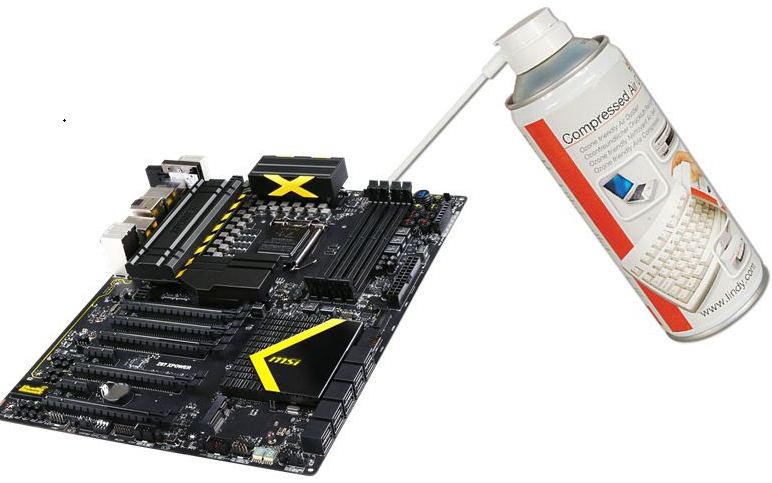
Now put your motherboard on a flat surface and remove the processor fan and the process also. Cover the process socket with a piece of paper like a picture below
Clean motherboard by compressed air pressure
Now give an air pressure to the motherboard and that will remove all the dirt off to your board. After that clean the ram socket with the help of toothbrush and give an air pressure again into the socket. Now, the basic cleaning is done you can assemble back your motherboard into the computer case and power on your computer to test it.

Hard cleaning

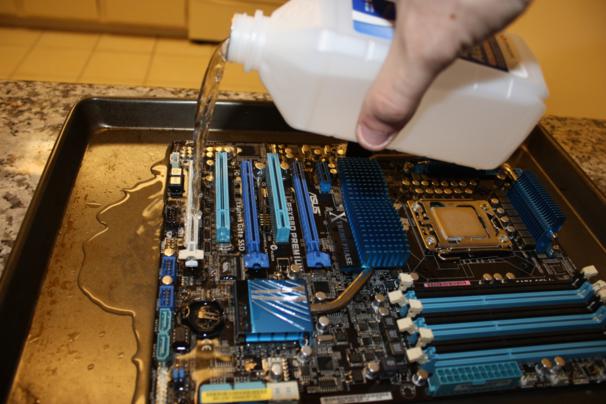
Using isopropyl alcohol is very effective cleaner because its clean all the chemical dust like carbon and the solding junk. Giving an alcohol bath to your motherboard is fully safe and it’s the common way to save a dead motherboard. Mostly all the repair shops giving an alcohol bath to the motherboard just to make it start.
For hard cleaning we are using isopropyl alcohol because it’s non-conductive and it’s also dries fast. I suggest you to use 90% alcohol because 60-70 % contains more water than 90% and it’s harmful for your computer and also creates electric shorting.

alchole cleaning 


 Source:- deskdecode

How to Fully Clean a Desktop PC Motherboard – Isopropyl Alcohol Bath


Motherboard is a main part of your computer case and its need to clean once in a year to work and perform better. Dirty motherboard can be the reason for its damage because the dirt sit on the chip solding and when it moist they creates a minor shorting and it will make your computer dead.
Cleaning a board can be trick it can only be done by who which knows how to disassemble a computer, if you don’t know i suggest you to see this video below to learn how to apart a computer.


So let’s see

Things you need
  1. Screwdriver
  2. Air Blower or Compressed Air
  3. Tooth Brush
  4. Isopropyl Alcohol 90%

Basic cleaning

Step 1 – Power Off
Turn off or shut down your computer if it’s running. Unplug the main power cord from the back side which was attached to your computer’s SMPS.
Step 2 – Disassemble
Now dissassemble your computer and take off your motherboard from the computer’s cabinet.
Step 3 – Cleaning (Basic)
Now put your motherboard on a flat surface and remove the processor fan and the process also. Cover the process socket with a piece of paper like a picture below
Clean motherboard by compressed air pressure
Now give an air pressure to the motherboard and that will remove all the dirt off to your board. After that clean the ram socket with the help of toothbrush and give an air pressure again into the socket. Now, the basic cleaning is done you can assemble back your motherboard into the computer case and power on your computer to test it.

Hard cleaning

Using isopropyl alcohol is very effective cleaner because its clean all the chemical dust like carbon and the solding junk. Giving an alcohol bath to your motherboard is fully safe and it’s the common way to save a dead motherboard. Mostly all the repair shops giving an alcohol bath to the motherboard just to make it start.
For hard cleaning we are using isopropyl alcohol because it’s non-conductive and it’s also dries fast. I suggest you to use 90% alcohol because 60-70 % contains more water than 90% and it’s harmful for your computer and also creates electric shorting.

alchole cleaning 


 Source:- deskdecode


Every gamer’s need two thing first Game and second is Graphics and the main thing is, if your computer doesn’t supports high end graphic that means it also doesn’t able to play new games either until you’ve upgrade the graphics. This is the only condition why you’ve buying a video card or otherwise you are an animator. In both condition you’re going to upgrade your card and the thing you are wondering about is does that video card supports my computer.
If you are going to buy a new graphic card then i first thing you are wondering about is, does that graphic card will able to run on my pc or does my computers motherboard supports it? I know it’s hard to find out and that why make this tutorial to make it easy for you and after that you will easily search you compatible card on the market.

So let’s see

Finding the compatible graphic card is not a hard task to do you’ll just need to know is, does my motherboard have PCIe x16 slot or not. Now days the graphic card only needs PCIe x16 (PCI Express) slot to fits in and perform ourselves. Here’s a pic below to show you how PCI Express x16 is looks likes:

To find this slot, open your computer case and look at that same free slot on the motherboard. You can also go on manufactures website for your motherboard if you don’t wanna to open the computer case. If you’ll find it that’s well and good but if you didn’t find any that means you’ll need to buy a motherboard first before buying any card.
After finding the PCI x16 slot there are only two things you’ll need to remember before buying any card is –
  1. PCI Express Compatibility
  2. Power Consumption

PCI Express Compatibility

That’s great if you  having a PCIe x16 slot on your motherboard but first you’ll need to find out what type of slot it is, it’s a PCIe x16  2.0 or is it PCIe x16  3.0. There are two type of PCIe x16 slot first is 2.0 which is second generation and the other one 3.0 which is third generation slot. Both looks same but 3.0 contain double of bandwidth than 2.0 but the great thing is that you can run 3.0 supported cards on the 2.0 slot. Running a PCIe x16  3.0 supported card on 2.0 can decrease the half performance of that graphic card but if you are buying a medium range 3.0 Supported Card that will works for you. If you wanna to play high end game on your computer, that will need a 3.0 supported Card and Motherboard both in order to perform best.
If You Don’t Get What I’m Taking about above So, The Thing Is –
  1. If you having a PCI Express x16  2.0(PCIe x16 2.0) slot on your motherboard and you’ve purchasing a video card which runs on 2.0 slot, that will perfectly works for you.
  2. If you having a PCI Express x16  3.0(PCIe x16 3.0) slot on you motherboard and you’ve purchasing a video card which runs on 0 slot, that will perfectly works for you.
  3. But if you having a 0 slot and you’ve wondering to run a 3.0 card on it. That will reduce the half of its performance.
Here’s a pic of two graphic card specifications to show you how to check the cards slot compatibility.
gtx 590 AND 750
So, check your motherboard’s specification on the internet by its Model No. and find what type of PCIe x16 you having on your motherboard. If the specification shows you PCI Express x16 without any description that means you having a PCIe x16  2.0 or if the specification shows PCI Express x16  3.0 or it also describe it as 3rd generation that means you’ve having a 3.0 slot and your motherboard is able to plug any kind of graphic card in it.Here a specification of both PCI 2.0 and 3.0 motherboard to show you how to check it.
ga-p45t spe

Power Consumption

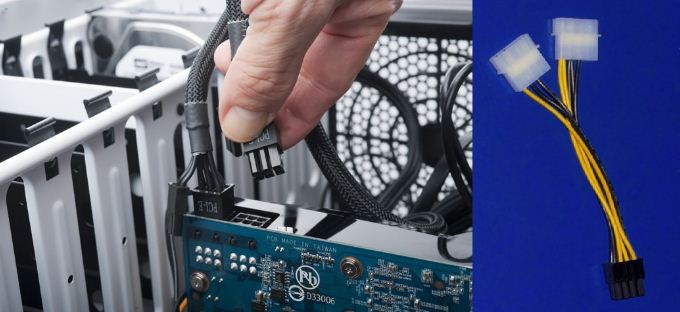
Check the specification of your card to know how much power supply does your cards needs to run and does your PSU can handle that usage or not. Most of the card needs external power connection to run and normally we don’t have that external connector in our computer’s PSU to connect the card in to it. In that case you can use the connector to connect the psu to the card. Here is pic below to show you how connector looks like:
power-connector-graphic-card
To calculate your power consumption requirement here is link of PSU calculator below to let you know how powerful PSU you’ll need to run a graphic card on your computer. Select your graphic card on that form and compare does your PSU has that capability to run that card on  its power supply.
PSU Watt calculator >>>>>http://support.asus.com/PowerSupply.aspx?SLanguage=en
To check your PSU Power check out the image below:
PSU 600 WATT RS-PSU-450-AC1N (3)

HOT Topics

Source:- deskdecode

How to find which graphics card is compatible with my computer’s motherboard ?


Every gamer’s need two thing first Game and second is Graphics and the main thing is, if your computer doesn’t supports high end graphic that means it also doesn’t able to play new games either until you’ve upgrade the graphics. This is the only condition why you’ve buying a video card or otherwise you are an animator. In both condition you’re going to upgrade your card and the thing you are wondering about is does that video card supports my computer.
If you are going to buy a new graphic card then i first thing you are wondering about is, does that graphic card will able to run on my pc or does my computers motherboard supports it? I know it’s hard to find out and that why make this tutorial to make it easy for you and after that you will easily search you compatible card on the market.

So let’s see

Finding the compatible graphic card is not a hard task to do you’ll just need to know is, does my motherboard have PCIe x16 slot or not. Now days the graphic card only needs PCIe x16 (PCI Express) slot to fits in and perform ourselves. Here’s a pic below to show you how PCI Express x16 is looks likes:

To find this slot, open your computer case and look at that same free slot on the motherboard. You can also go on manufactures website for your motherboard if you don’t wanna to open the computer case. If you’ll find it that’s well and good but if you didn’t find any that means you’ll need to buy a motherboard first before buying any card.
After finding the PCI x16 slot there are only two things you’ll need to remember before buying any card is –
  1. PCI Express Compatibility
  2. Power Consumption

PCI Express Compatibility

That’s great if you  having a PCIe x16 slot on your motherboard but first you’ll need to find out what type of slot it is, it’s a PCIe x16  2.0 or is it PCIe x16  3.0. There are two type of PCIe x16 slot first is 2.0 which is second generation and the other one 3.0 which is third generation slot. Both looks same but 3.0 contain double of bandwidth than 2.0 but the great thing is that you can run 3.0 supported cards on the 2.0 slot. Running a PCIe x16  3.0 supported card on 2.0 can decrease the half performance of that graphic card but if you are buying a medium range 3.0 Supported Card that will works for you. If you wanna to play high end game on your computer, that will need a 3.0 supported Card and Motherboard both in order to perform best.
If You Don’t Get What I’m Taking about above So, The Thing Is –
  1. If you having a PCI Express x16  2.0(PCIe x16 2.0) slot on your motherboard and you’ve purchasing a video card which runs on 2.0 slot, that will perfectly works for you.
  2. If you having a PCI Express x16  3.0(PCIe x16 3.0) slot on you motherboard and you’ve purchasing a video card which runs on 0 slot, that will perfectly works for you.
  3. But if you having a 0 slot and you’ve wondering to run a 3.0 card on it. That will reduce the half of its performance.
Here’s a pic of two graphic card specifications to show you how to check the cards slot compatibility.
gtx 590 AND 750
So, check your motherboard’s specification on the internet by its Model No. and find what type of PCIe x16 you having on your motherboard. If the specification shows you PCI Express x16 without any description that means you having a PCIe x16  2.0 or if the specification shows PCI Express x16  3.0 or it also describe it as 3rd generation that means you’ve having a 3.0 slot and your motherboard is able to plug any kind of graphic card in it.Here a specification of both PCI 2.0 and 3.0 motherboard to show you how to check it.
ga-p45t spe

Power Consumption

Check the specification of your card to know how much power supply does your cards needs to run and does your PSU can handle that usage or not. Most of the card needs external power connection to run and normally we don’t have that external connector in our computer’s PSU to connect the card in to it. In that case you can use the connector to connect the psu to the card. Here is pic below to show you how connector looks like:
power-connector-graphic-card
To calculate your power consumption requirement here is link of PSU calculator below to let you know how powerful PSU you’ll need to run a graphic card on your computer. Select your graphic card on that form and compare does your PSU has that capability to run that card on  its power supply.
PSU Watt calculator >>>>>http://support.asus.com/PowerSupply.aspx?SLanguage=en
To check your PSU Power check out the image below:
PSU 600 WATT RS-PSU-450-AC1N (3)

HOT Topics

Source:- deskdecode